

Posted on February 25, 2004
Introduction
Early supercomputers used parallel processing and distributed computing and to link processors together in a single machine. Using freely available tools, it is possible to do the same today using inexpensive PCs - a cluster. Glen Gardner liked the idea, so he built himself a massively parallel Mini-ITX cluster using 12 x 800Mhz nodes.
The machine runs FreeBSD 4.8, and MPICH 1.2.5.2. After working with his machine and running some basic tests, Glen's cluster looks to be equivalent to at least 4 (maybe 6) 2.4Ghz Pentium IV boxes in parallel on a similar network - achieving a performance of around 3.6 GFLP. With the exception of the metalwork, power wiring, and power/reset switching, everything is off the shelf. Rather impressive we'd say - though he *is* root on a 1.1 TFLP 528 CPU monster, the 106th fastest computer in the world...
The "Mini-Cluster"
I built a Mini-ITX based massively parallel cluster named PROTEUS. I have 12 nodes using VIA EPIA V8000, 800 MHz motherboards. The little machine is running FreeBSD 4.8, and MPICH 1.2.5.2. Troubles installing and configuring Free BSD and MPICH were few. In fact, there were no major issues with either FreeBSD or MPICH.
The construction is simple and inexpensive. The motherboards were stacked using threaded aluminum standoffs and then mounted on aluminum plates. Two stacks of three motherboards were assembled into each rack. Diagonal stiffeners were fabricated from aluminum angle stock to reduce flexing of the rack assembly.
The controlling node has a 160 GB ATA-133 HDD, and the computational nodes use 340 MB IBM microdrives in compact flash to IDE adapters. For file I/O, the computational nodes mount a partition on the controlling node's hard drive by means of a network file system mount point.
Each motherboard is powered by a Morex DC-DC converter, and the entire cluster is powered by a rather large 12V DC switching power supply.
With the exception of the metalwork, power wiring, and power/reset switching, everything is off the shelf.
|
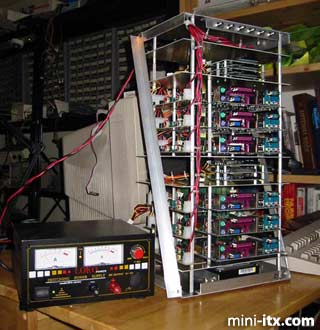
The original 6 node configuration.
|
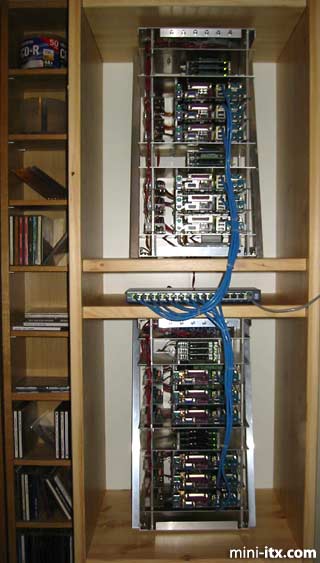
The completed 12 node cluster.
|
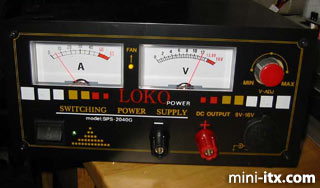
This image shows the power use (60 watts) at idle for 6 nodes.
At present, the idle power consumption is about 140 Watts (for 12 nodes) with peaks estimated at around 200 Watts. The machine runs cool and quiet. The controlling node has 256 MB RAM , and an 160 GB ATA 133 IDE hard disk drive. The computational nodes have 256 MB RAM, each and boot from 340 MB IBM microdrives by means of compact flash to IDE adapters. The computational nodes mount /usr on the controlling node via NFS, for storage and to allow for a very simple configuration. No official benchmarks have been run, but for simple computational tasks the mini cluster appears to be faster than four 2.4 GHz pentium 4 mcahines used in parallel, at a fraction of the cost and power use.
Power and Cooling
Mini-ITX boards have very low power dissipation as compared to most motherboard/cpu combination in popular use today. This means that a Mini-ITX cluster with as many as 16 nodes won't need special air conditioning. Low power dissipation also means low power use, so you can use a single inexpensive UPS to provide clean AC power for the nodes.
In contrast, a 12-16 node cluster built with Intel or AMD processors will generate enough heat that you will likely need heavy duty air conditioning. Additionally, you will need adequate electrical power to deliver the 2-3 kilowatts peak load that your 12 node PC cluster will require. Plan on having higher than average utility bills if you use PC's...
Hardware Construction
The cluster is built in two nearly identical racks. Each rack has two stacks of three motherboards and dc-dc converters mounted on aluminum standoffs.
|
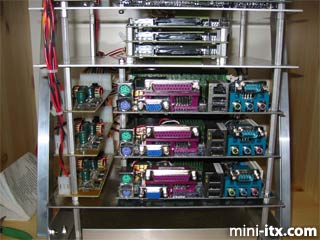
The compact flash adapters used to mount the microdrives are also in stacks of three. Each stack of boards is mounted on a 7 inch by 10 inch 0.0625 thick 6061-T6 aluminum plate as are the microdrive stacks. There are seven metal plates in all, in each rack.
|
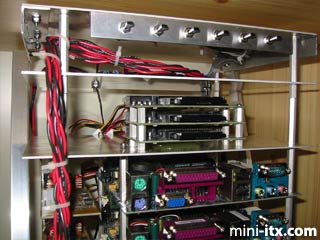
The top cover plate has the mounting bracket for the 6 on/off/reset switches.
|
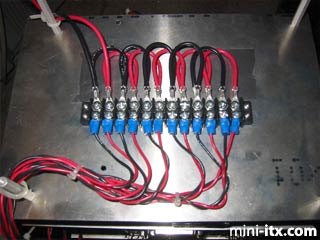
The plate below it is home to the power distribution terminal block. The power delivery cable for each rack is heavy duty 14 gauge stranded wire with pvc insulation. The power cabling from the terminal strip to each of the dc-dc converters is 18 gauge stranded pvc insulated hookup wire. The wiring for the power/reset switches is 24 gauge stranded, pvc insulated wire.
|
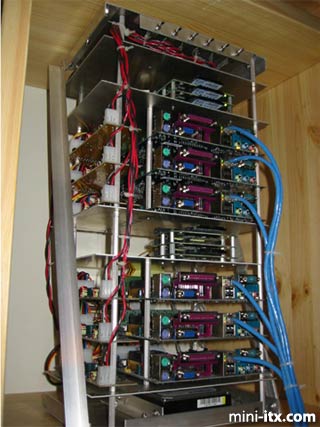
The top rack houses nodes one through six (node one is the controlling node). The bottom plate of the top rack also houses the 160 GB ATA-133 hard disk drive used by the controlling node. All other nodes make use of the IBM microdrives. Node number three has a spare compact flash adapter which can be used to duplicate microdrives for easy node maintenance.
|
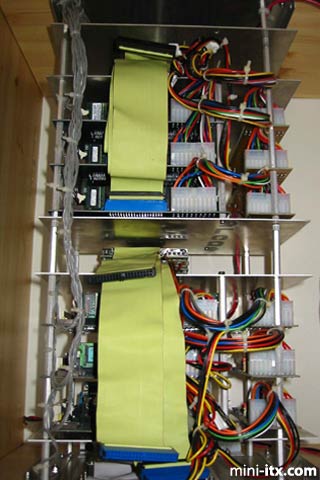
The disk drive and power cabling to the motherboards was dressed as was sanely possible on the back panel. The liberal use of nylon cable ties helps reduce the tendency of pc cabling to develop into a rats-nest.
|
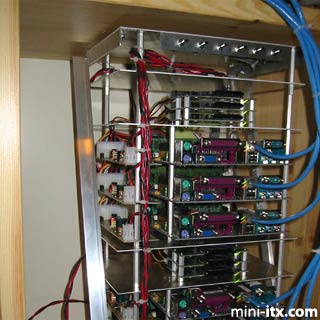
The bottom rack houses nodes seven through 12, with one microdrive for each node mounted in an identical manner to the top rack. Other than lacking a hard drive on the bottom plate, the second rack is identical to the first. All the metalwork is fabricated by hand using 0.0625 inch aluminum plate and 3/4 inch aluminum angle stock. All of the standoffs and metal bits are attached using stainless steel 4-40 machine screws and aircraft style locknuts. Stick-on rubber feet keep the bottom plate from marring delicate surfaces.
There was no cutting or bending involved. All metal bits were simply cut, drilled, and bolted together using 4-40 hardware.
All wiring is crimped by hand using standard crimp connectors and tools available from a popular online electronics components supplier. The hand made wiring harnesses are dressed by twisting the wires to assure low noise, and then fixing the wiring in place using nylon cable ties. The power/reset switches are on-off-on center off , three position momentary contact toggle switches available from most good electronics supply stores.
|
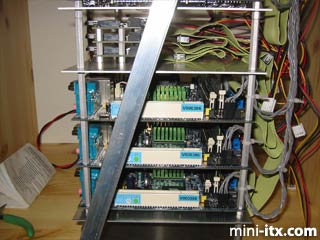
The wiring for these switches is hand soldered at the switch end, and standard 0.1 inch header connectors were crimped at the motherboard end to make the necessary connections.
Networking
|
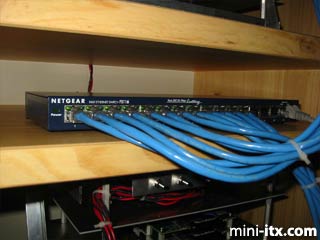
There is nothing sacred about the networking. I used the internal fast ethernet adapters which came with my mini-itx boards. The network switch was a low cost 16 port fast ethernet switch purchased at an office supply store for about $80. The cabling was crimped by hand using good quality four twisted pair (8 conductor) cat 5 cable.
Power Considerations
|
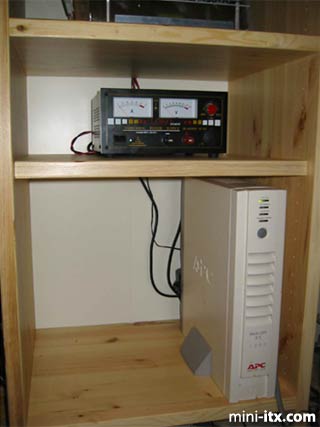
The DC-DC converters require a clean, well-regulated 12VDC source. I chose to use a heavy duty 60 ampere 12VDC switching power supply capable of delivering 60 amperes peak current which I ordered from an online electronics test equipment supplier. Since badly conditioned AC power is potentially damaging to expensive computing equipment, I use a 1 KVA UPS purchased at an office supply store to make sure the cluster can't be "bumped off" by power line glitches and droputs.
Software Configuration
The cluster consists of a controlling node, with a large capacity hard drive, and several computational nodes, each with their own hard disk drive (these hard drives can be smaller).
The software which performs the parallelization (MPI) is installed on the controlling node, and the computational nodes mount a shared directory on the controlling node via NFS.
Communications between the nodes is established via rsh by MPI, and shared files are found via the mounted NFS file system,
The networking is fast ethernet (100 Mbit) and makes use of a fast ethernet switch switch. Gigbit ethernet is faster (and better for fast file I/O) but 100 Mbit ethernet is quite adequate for number crunching.
The version of MPI used is mpich-1.2.5.2
The Operating system for the controlling node and all the computational nodes is FreeBSD MINI 4.8 RELEASE
FreeBSD has moved forward a bit since I began building my cluster, so check with freebsd.org to see what is currently available. Whatever distribution you use, you should be using RELEASE or STABLE versions.
Install and configure the controlling node
Keep it simple. Resist the temptation to add a lot of options. JUST MAKE IT WORK.
Keep all the nodes as identical as possible, they will be running code that is generated on the controlling node.
Setup a firewall between the cluster and the outside world. The cluster needs a high degree of connectivity and has rather poor security.
Assemble the nodes and test them one at a time.
Install Mini-FBSD on the controlling node first (I'm using the mini 4.8 distribution).
Use the same root password on the controlling node and on all the computational nodes.
Configure the controlling node as an NFS server and export /usr to be accessed with root privileges.
Enable inetd, and edit /etc/inetd.conf to allow rlogin.
Setup rsh and ssh so that the controlling node and computational nodes can access each other.
Be sure to edit /etc/ssh/sshd_config to allow root login.
DO NOT allow the controlling node to rsh/ssh to itself. Doing this will not only cause security issues, but can lead to the controlling node getting saturated with rsh connections during a program run , and can cause slowness and program crashes.
Allow only essential external computers to access the controlling node by ssh. Do not allow any external computers to use rsh to access any node. Use ssh instead.
Edit /etc/rc.conf for the appropriate hostname and ip address.
Edit /etc/hosts to include the hostnames and ip's of the controlling node, computational nodes, and any external computers which need to access the controlling node.
Download and install MPI. Be sure to read the documentation on the MPI web site. Install MPI in /usr/local/mpi. I built MPI to run in P_4 mode to keep things simple.
In '/root/.cshrc' add '/usr/local/mpi/bin' to the path. You might also wish to edit '/etc/skel/.cshrc' with the same value so that new users get a working MPI.
Install FBSD on one computation node
Configure it as an nfs client.
Enable inetd and edit /etc/inetd.conf to allow rlogin
Edit '/etc/fstab' to add the nfs mount for /usr and set the mount point as /mnt/usr . Create a symbolic link at /usr/local/mpi that points to /mnt/usr/local/mpi
Add the hostnames and ip addresses for the controlling nodes and all the computational nodes to /etc/hosts
Edit /etc/rc.conf for the appropriate hostname and IP address for the node.
Edit /etc/ssh/ssh_config to configure the node as an ssh client.
Use rcp/scp to copy the /etc/ssh/sshd_config file from the controlling node to the computational node.
Create an empty file with the name of '.hushlogin' and put it in '/root'. You may wish to also put .hushlogin in /etc/skel so new users automatically get a copy of it. This inhibits motd and limits the login text to a prompt. It serves to keep mpi from complaining about getting an unexpected response when it uses rsh to connect to a node.
You may need to have .rhosts in /root, be sure to include all nodes in this, if you use it. You might wish to put a copy of .rhosts in /etc/skel so that new users can use ssh/rsh without being root.
You will need to add each node to '/usr/local/mpi/share/machines.freebsd '. This file is the list of nodes usable by MPI.
Run the test script /usr/locall/mpi/sbin/tstmachines with the -v option. 'sh /usr/local/mpi/sbin/tstmachines -v" It may complain that it can not access the controlling node (this is normal), but it should talk to all the nodes in the nodelist and run some test software to confirm that all is working. The script uses rsh to talk to all the nodes, and if the controlling node cannot rsh to itself, the script will complain. Resist the temptation to allow the controlling node to rsh to itself. MPI will run a process on localhost in addition to any nodes listed in '/usr/local/mpi/share/machines.freebsd', so even if the script complains that it can't find the controlling node, mpi will still work.
Compile and run some of the sample programs that come with mpi to confirm that all is working properly.
Copy the newly configured node to an "empty" hard drive.
If all is well, connect an empty hard drive for the next node to the secondary controller and use dd to copy the configured hard drive to the empty one. Be sure the "empty" drive is configured as slave and does not contain a primary partition. or FBSD might not know what to do with two hard drives at the same time.
Shut down the computer and remove the copied drive and install it in the second node. Don't forget to move the jumper from slave to master.
Configure the new node by booting it, and logging in from a keyboard, and editing /etc/rc.conf for the appropriate hostname and ip address.
Add the new node to '/usr/local/mpi/share/machines.freebsd' on the controlling node.
Reboot the new node and rsh to it from the controlling node to confirm communications.
Run /usr/local/mpi/sbin/tstmachines in verbose mode to assure the new node works properly.
If the new node is working properly, use dd to install copies of the computational node on all the drives for the remaining cluster nodes.
Testing
Plan for some odd things to happen. Clustering has a way of exposing "flaky" hardware and software. Usually if a node crashes frequently for no apparent reason , you might want to consider it as having potential hardware problems.
Power up the new cluster and let it idle for a day or two, and check the nodes to see if they spontaneously crash, disconnect, or otherwise misbehave. If the cluster seems stable, you need to begin writing programs designed to stress the machine so that you can expose software bugs, and latent hardware issues. Work through these issues one at a time. Depending on the hardware, the size of the cluster. and it's complexity, it could take from a few weeks to several months to weed out the worst of the quirks and bugs. Replace flaky hardware. One bad node in the nodelist can render a cluster useless, so don't waste your time and money trying to limp along with wounded hardware.
Operation
Power it up and leave it up. Cycle the power on a node only when you absolutely must. This reduces failures from inrush currents at power-up as well as reducing thermomechanical stresses that lead to component failures.
Development
You might wish to set aside a node for development, so you can test new kernels or software. Once you are sure your new code is stable, you can migrate it to the other nodes. Exclude this node from the nodelist so the users don't get unhappy surprises when they run their software.
Maintenance
Plan on having about ten percent of the cluster failed or failing at any given time. If you need a machine with 10 nodes operational, you had best plan on having 12 nodes, and some spare parts. The larger the cluster is, the more failed hardware you can expect. Really large clusters have hardware failures on a more or less continuous basis. Alternatively, you can just build a lot of extra nodes and take bad nodes offline as the cluster "burns in" (this seems expensive and wasteful to me). Run the cluster on a good UPS. It is not an option. You need clean power to get good hardware life, and with this many computers the investment in a UPS will pay off in terms of longer hardware life.
Lifespan
Consumer grade electronics is designed with an operational life of two years. Lower quality components have an even shorter design life. This means that once you get all the bugs worked out, and everything is "burned in" you can expect a year or two of fairly trouble-free service. After that, the components age sufficiently that you will begin to see hardware failures rising to the point that you probably will want to consider just building a new machine.
Final words
Building a parallel computing machine is a big investment in time and money. Take your time and plan your project carefully. Make sure all of the components you plan to use are available, and will continue to be available over the several months it is likely to take you to build and test your creation. A little thought will save you a lot in terms of time, money and disappointment, and will pay big dividends in satisfaction.
Useful links
The MPI Home Page. You can download the latest distribution of MPI as well as useful documentation.
The FreeBSD Home Page. Download your favorite distribution of FreeBSD and browse online documentation.
 |
 |
 |
Quick Links
Mailing Lists:
Mini-ITX Store
Projects:
Show Random
Accordion-ITX
Aircraft Carrier
Ambulator 1
AMD Case
Ammo Box
Ammo Tux
AmmoLAN
amPC
Animal SNES
Atari 800 ITX
Attache Server
Aunt Hagar's Mini-ITX
Bantam PC
BBC ITX B
Bender PC
Biscuit Tin PC
Blue Plate
BlueBox
BMW PC
Borg Appliance
Briefcase PC
Bubbacomp
C1541 Disk Drive
C64 @ 933MHz
CardboardCube
CAUV 2008
CBM ITX-64
Coelacanth-PC
Cool Cube
Deco Box
Devilcat
DOS Head Unit
Dreamcast PC
E.T.PC
Eden VAX
EdenStation IPX
Encyclomedia
Falcon-ITX
Florian
Frame
FS-RouterSwitch
G4 Cube PC
GasCan PC
Gingerbread
Gramaphone-ITX-HD
GTA-PC
Guitar PC
Guitar Workstation
Gumball PC
Hirschmann
HTPC
HTPC2
Humidor 64
Humidor CL
Humidor II
Humidor M
Humidor PC
Humidor V
I.C.E. Unit
i64XBOX
i-EPIA
iGrill
ITX Helmet
ITX TV
ITX-Laptop
Jeannie
Jukebox ITX
KiSA 444
K'nex ITX
Leela PC
Lego 0933 PC
Legobox
Log Cabin PC
Lunchbox PC
Mac-ITX
Manga Doll
Mantle Radio
Mediabox
Mega-ITX
Micro TV
Mini Falcon
Mini Mesh Box
Mini-Cluster
Mobile-BlackBox
Moo Cow Moo
Mr OMNI
NAS4Free
NESPC
OpenELEC
Osh Kosh
Pet ITX
Pictureframe PC
Playstation 2 PC
Playstation PC
Project NFF
PSU PC
Quiet Cubid
R2D2PC
Racing The Light
RadioSphere
Restomod TV
Robotica 2003
Rundfunker
SaturnPC
S-CUBE
SEGA-ITX
SpaceCase
SpacePanel
Spartan Bluebird
Spider Case
Supra-Server
Teddybear
Telefunken 2003
TERA-ITX
The Clock
ToAsTOr
Tortoise Beetle
Tux Server
Underwood No.5
Waffle Iron PC
Windows XP Box
Wraith SE/30
XBMC-ION