

Posted on July 22, 2014
Introduction
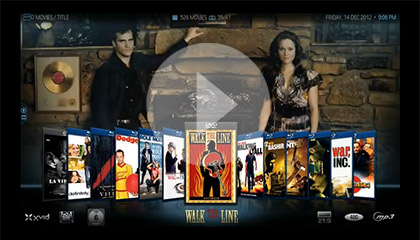
We are long time fans of XBMC here at Mini-ITX.com. OpenELEC is a distribution of XBMC (currently at version 13) with a streamlined installation and update process, making it even easier to utilise the graphics acceleration of ION and Fusion based Mini-ITX systems to make a very slick Home Theatre PC.
Here's how to do it.
For this project you will need:
- USB Memory Stick over 256MB in size
- Access to a computer running Windows (to create the installation stick)
- Mini-ITX system with at at least 1GB memory and 1GB local storage
Steps:
- Determine correct version to use
- Download OpenELEC
- Create a USB Key
- Boot into OpenELEC
- Install OpenELEC
- How to: Copy files to OpenELEC box (via Windows)
- How to: Add your network media to XBMC
- How to: Enable automatic updates
- Bonus How to: Configure your audio output device
This guide was built and tested with our very own Gigabyte E350N and Zotac Supreme special offer bundles in mind, but will work with a wide variety of Mini-ITX boards. This guide would not have been possible without the hard work of the good people at the XBMC and OpenELEC projects.
Please consider donating to the XBMC project!
Please also consider donating to the OpenELEC project!
Start here -->
 |
 |
 |
Quick Links
Mailing Lists:
Mini-ITX Store
Projects:
Show Random
Accordion-ITX
Aircraft Carrier
Ambulator 1
AMD Case
Ammo Box
Ammo Tux
AmmoLAN
amPC
Animal SNES
Atari 800 ITX
Attache Server
Aunt Hagar's Mini-ITX
Bantam PC
BBC ITX B
Bender PC
Biscuit Tin PC
Blue Plate
BlueBox
BMW PC
Borg Appliance
Briefcase PC
Bubbacomp
C1541 Disk Drive
C64 @ 933MHz
CardboardCube
CAUV 2008
CBM ITX-64
Coelacanth-PC
Cool Cube
Deco Box
Devilcat
DOS Head Unit
Dreamcast PC
E.T.PC
Eden VAX
EdenStation IPX
Encyclomedia
Falcon-ITX
Florian
Frame
FS-RouterSwitch
G4 Cube PC
GasCan PC
Gingerbread
Gramaphone-ITX-HD
GTA-PC
Guitar PC
Guitar Workstation
Gumball PC
Hirschmann
HTPC
HTPC2
Humidor 64
Humidor CL
Humidor II
Humidor M
Humidor PC
Humidor V
I.C.E. Unit
i64XBOX
i-EPIA
iGrill
ITX Helmet
ITX TV
ITX-Laptop
Jeannie
Jukebox ITX
KiSA 444
K'nex ITX
Leela PC
Lego 0933 PC
Legobox
Log Cabin PC
Lunchbox PC
Mac-ITX
Manga Doll
Mantle Radio
Mediabox
Mega-ITX
Micro TV
Mini Falcon
Mini Mesh Box
Mini-Cluster
Mobile-BlackBox
Moo Cow Moo
Mr OMNI
NAS4Free
NESPC
OpenELEC
Osh Kosh
Pet ITX
Pictureframe PC
Playstation 2 PC
Playstation PC
Project NFF
PSU PC
Quiet Cubid
R2D2PC
Racing The Light
RadioSphere
Restomod TV
Robotica 2003
Rundfunker
SaturnPC
S-CUBE
SEGA-ITX
SpaceCase
SpacePanel
Spartan Bluebird
Spider Case
Supra-Server
Teddybear
Telefunken 2003
TERA-ITX
The Clock
ToAsTOr
Tortoise Beetle
Tux Server
Underwood No.5
Waffle Iron PC
Windows XP Box
Wraith SE/30
XBMC-ION